Robspalu Railways

Operating Dispaly

Requirements


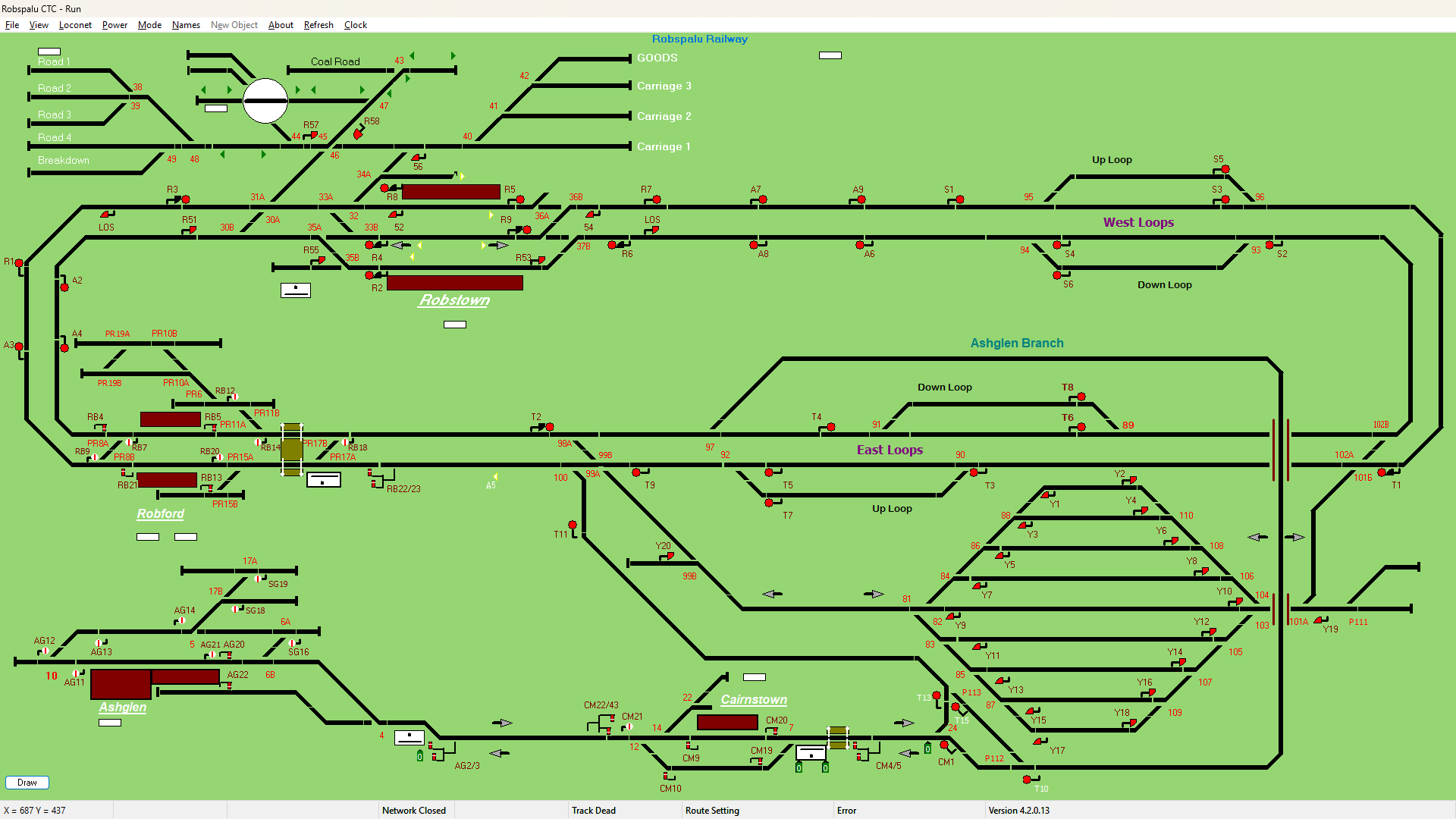
The original Control System was the tradiional Panel style, with switches and buttons. My new display panel should be a full screen display of my whole railway. It needs to show the track layout with Points, Signals, Level Crossings, Signal Boxes and Stations
It needs show track occupancy, lie of points, signal aspects, route locking and TDN's
It needs to be able to set routes, move points, operate Level Crossings and Insert/Clear TD's.
Operations


Placeholder Picture

Route Setting

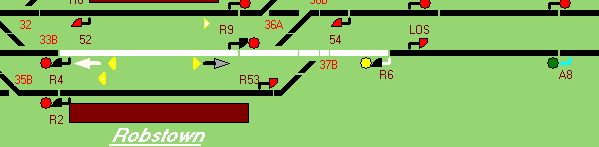
To set a route the required Entrance Signal is clicked, this will cause the signal post to flash, then the required Exit signal is clicked. If the route is available the route will be set and the track segments within the route will turn 'White' to show the extent of the route and the signal will change to 'Yellow' or 'Green' depending on the aspect of the next signal.

Placeholder Picture

Placeholder Picture

Point Movement

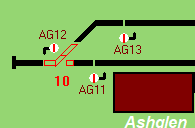
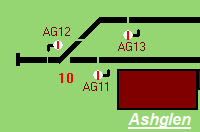
To move a set of points 'Reverse' the mouse is moved over the required point, the point name will be shown in Panel 2 of the status bar at the bottom of the screen, the right mouse button is then clicked and the points are requested Reverse.

Placeholder Picture

if the interlocking deems them 'Free' they will be commanded 'Reverse' and when detected'Reverse' the display will be updated.

Placeholder Picture

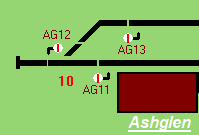
To move a set of points 'Normal' the mouse is moved over the required point, the point name will be shown in Panel 2 of the status bar at the bottom of the screen, the right mouse button is then clicked and the points are requested Normal

Placeholder Picture

if the interlocking deems them 'Free' they will be commanded 'Normal' and when detected 'Normal' the display will be updated.

Placeholder Picture

Placeholder Picture

Level Crossings

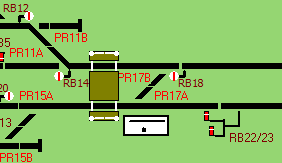
To Close a level Crossing to 'Road Traffic' the mouse is moved over the level Crossing, the Level Crossing name will be shown in Panel 2 of the status bar at the bottom of the screen, the left mouse button is then clicked and the Level Crossing is requested Closed.

Placeholder Picture

To Open a level Crossing to 'Road Traffic' the mouse is moved over the level Crossing, the Level Crossing name will be shown in Panel 2 of the status bar at the bottom of the screen, the right mouse button is then clicked and the Level Crossing is requested Closed.

Placeholder Picture


Placeholder Picture

Signals

Signals operate automatically when conditions are met. Automatic signals for example will show a proceed aspect if the track(s) between it and the next signal are clear.
Controlled colour light signals and Semaphore signals will show a proceed when the required route is set and all points are in correct position and tracks clear.
The control panel displays the actual aspect for colour light signals and the arm position for Semaphores.

Placeholder Picture

Placeholder Picture